Quick Answer
To print any template or ruler at true actual size, turn off 'Fit to Page' or 'Shrink to Printable Area' in your print dialog and explicitly select 'Actual Size' or 'Scale: 100%'. Always verify the first printout against a physical credit card (85.60 mm) before cutting or crafting.
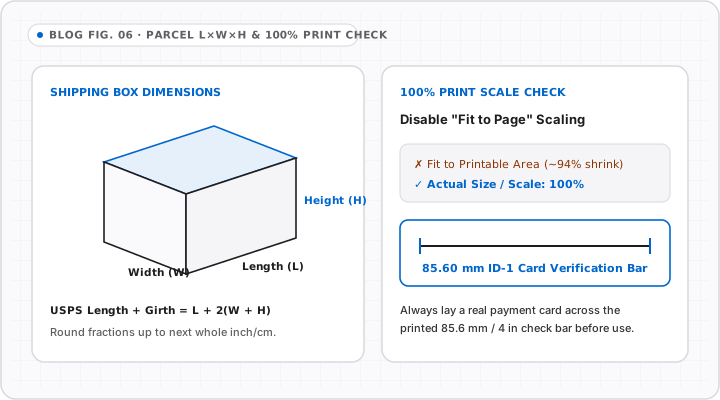
If you have ever printed a sewing pattern, guitar fret template, ring sizer, or paper ruler only to find a part misses by 4 mm at the far end, printer scaling defaults are almost always to blame. Printers quietly enable “Fit to Page” to keep ink off unprintable paper margins—silently turning a 100% scale ruler into a 95% toy.
Exact Print Settings by App and Operating System
Before hitting Print, open More Settings or Show Details and verify these exact labels:
| Application / OS | Broken Default | Required Setting |
|---|---|---|
| Google Chrome / Microsoft Edge | Fit to printable area / Default |
Under More settings > Scale: choose Custom -> 100 |
| Adobe Acrobat Reader | Fit or Shrink oversized pages |
Under Page Sizing & Handling: choose Actual size |
| macOS Preview | Scale to Fit |
Select Scale: -> type 100% |
| Safari (macOS) | Auto-shrink wide web layout | Set scale to 100%; print PDF export rather than raw webpage |
The 5-Second Post-Print Verification Check
Never trust a print dialog blindly—verify your sheet physically in five seconds:
- Lay any ISO/IEC 7810 ID-1 credit or debit card (
85.60 mm=3.370") along the0line of your printed ruler. - Check where the right edge lands: it must sit cleanly past
8.5 cmby0.6 mm(or just shy of3 3/8"=3.375"). - If it stops at
8.1–8.3 cm, Fit to Page was active—reprint with explicit100%Custom Scale.
Watch Out for Paper Stretch and Folding
- Inkjet dampness: Heavy ink fills slightly swell thin
75–80 gsmoffice paper until dry; wait 2 minutes before cutting templates. - Laser toner fusion: High heat inside laser fusers can cause slight
~0.1–0.2%sheet shrinkage along the feed direction on thin stock; use100–120 gsmcardstock for recurring shop patterns. - Skip printing completely when near a screen: For everyday measurements under
30 cm, save ink and paper by keeping our calibrated Actual Size Online Ruler or CM Ruler pinned in a browser bookmark.
Interactive Tools on OnlineRulerPlus
Try It in the Calibrated Workspace
Questions & Answers
Frequently Asked Questions
Why did my printable ruler come out slightly shorter than 12 inches?
+
Almost every home inkjet and laser printer reserves a 4 to 6 mm unprintable margin around the edge of US Letter or A4 paper. When Chrome, Edge, Adobe Reader, or macOS Preview defaults to 'Fit to Printable Area', the driver scales the entire document down to roughly 94%–97%, shrinking a 10 cm or 10 in span noticeably.
US Letter vs A4: Does paper size affect printable ruler scale?
+
As long as you force 'Actual Size' or '100% Scale', an A4 file printed on US Letter paper—or vice versa—keeps exact real-world tick spacing inside the center of the page, though the outer margin border may clip if the template runs close to 11 inches.
How accurate are inkjet or laser paper rulers compared to rigid metal rulers?
+
At 100% scale, modern laser printers hold tight linearity (~±0.2–0.5 mm across a page), whereas humid air or stretched inkjet paper can shift paper fiber by ~0.5 mm over 30 cm. Always verify the printed 10 cm or 4 in test bar against an ISO ID-1 card (85.60 mm) right after printing.
Standards & Verified Sources
- Adobe Support — Print PDFs at Actual Size / Custom Scale — Documents Actual Size vs Fit page scaling options in Acrobat and Reader.
- NIST — Dimensional Calibration & Reference Artifacts — Standard practice for verifying output scale against known physical reference artifacts.