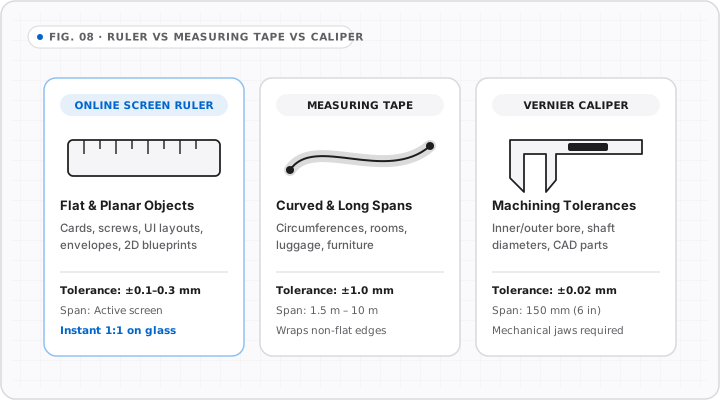
Is there an online ruler you can use to measure real objects online?
+
Yes. Online Ruler Plus turns any desktop monitor, laptop, tablet, or smartphone screen into a free actual-size online ruler calibrated in inches (with 1/16″ fractions), centimeters, and millimeters. Once you match a standard bank card or enter your display diagonal, tick spacing adjusts to your panel’s physical pixel pitch so you can measure physical objects directly on the glass.
How do you use an online ruler?
+
First, calibrate your display under Calibrate Your Screen using an ISO/IEC 7810 ID-1 payment card (85.60 × 53.98 mm) or your screen diagonal at 100% browser zoom. Second, pick Inches, cm, mm, or px from the workspace toolbar. Third, align the starting edge of your item with the visible 0 mark inside the screen frame (inset from the bezel), then read the opposite edge directly or click the ruler strip to drop draggable measurement guide lines.
How do you read a ruler online in inches, cm, and mm?
+
Start at the 0 datum line, locate the whole unit number just before your object ends, and count the smaller graduation ticks past that number. On the metric scale, numbered centimeters break into ten 1 mm increments with a taller tick at the 5 mm halfway mark. On the imperial inch scale, tick height decreases by fraction: half-inch (1/2″), quarter-inch (1/4″), eighth-inch (1/8″), and sixteenth-inch (1/16″). Moving your pointer across the stage also prints exact coordinates in the top status bar.
How do you identify 1 inch on an online ruler?
+
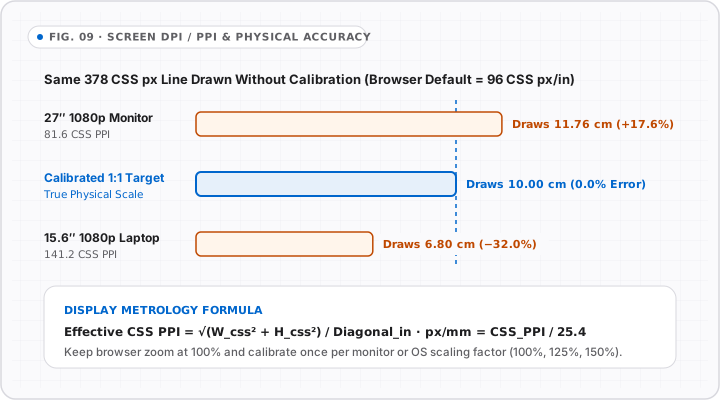
Switch the workspace to Inches (shortcut 2) after calibrating your display, then look at the calibrated distance from 0 to 1—equivalent to exactly 25.4 millimeters (2.54 cm). Do not count 96 CSS pixels on an uncalibrated monitor, because real screen pixel densities vary widely. For a fast sanity check against calibrated screen ticks, a US Quarter measures 0.955 inches (24.26 mm, just under 1 inch) and a US Penny measures exactly 0.75 inches (3/4 inch).
How do you measure cm and mm online?
+
Click cm (shortcut 1) or mm (shortcut 4) in the workspace toolbar, or launch the dedicated cm Ruler or mm Ruler page. Hold your item flat against the calibrated screen edge starting at the 0 hairline, read whole centimeters along the numbered ticks, and count individual 1 mm divisions to the nearest edge. Turning on Dual cm/in displays both metric and imperial scales simultaneously for side-by-side conversion.
Can I use my phone as a ruler, and can a smartphone measure objects?
+
Yes, within the physical length of your phone display. Modern smartphones pack high-DPI OLED or LCD panels (usually 2x to 3x device pixel ratio), so an uncalibrated 96 PPI web scale renders too small. Open Portrait Card Calibration (53.98 mm short-edge card outline) on your phone first, then place coins, screws, rings, or cards directly on the glass. Items longer than your phone screen—roughly 13 to 16 cm (5 to 6.5 inches)—cannot fit in a single pass and require stepping along a mark or using a physical tape measure.
Can I use my camera as a ruler?
+
Online Ruler Plus does not access your live camera or run AR depth estimation; live ruler measurements happen directly against your calibrated screen glass, and our offline Photo / Ctrl+V tool measures static uploaded or pasted photos from a 2-point reference object. While dedicated mobile apps such as Apple Measure (using LiDAR on supported iPhones/iPads) or Android ARCore rulers estimate room-scale distances through a camera, camera-based estimates are sensitive to lighting, lens distortion, and angle drift.
Why do online rulers require calibration, and does browser zoom break accuracy?
+
Web browsers render layout dimensions using a fixed W3C reference ratio of 96 CSS pixels per inch while concealing your monitor’s true physical dimensions for privacy. Because physical desktop panels sit around 82 to 110 CSS PPI and laptops often hit 113 to 142 CSS PPI, uncalibrated web rulers routinely err by 10% to 35%. Online Ruler Plus stores your calibrated physical hardware density (devicePxPerMm) in localStorage and listens for devicePixelRatio changes, automatically rescaling tick spacing if you zoom the page.
Does calibration carry across multiple monitors and stay private?
+
Each manual calibration saves locally in browser localStorage keyed by your screen resolution, devicePixelRatio, and platform family. Moving the window to a second monitor with a different size prompts or loads that display’s own saved scale profile. No measurement dimensions, camera streams, or calibration values are uploaded to our servers; cookie and advertising disclosures are detailed on our Privacy Policy page.